

How To Disconnect and Reconnect QuickBooks Online
This article shows how to reconnect, add or remove a QuickBooks Online company in API Nation. You do all three on the QuickBooks Online Connections page.
Open the Connections page
- Sign in to your API Nation account at https://my.apination.com/.
- Open the QuickBooks Online Connections page. You can also get there from All Applications: open QuickBooks Online, then click Connections.
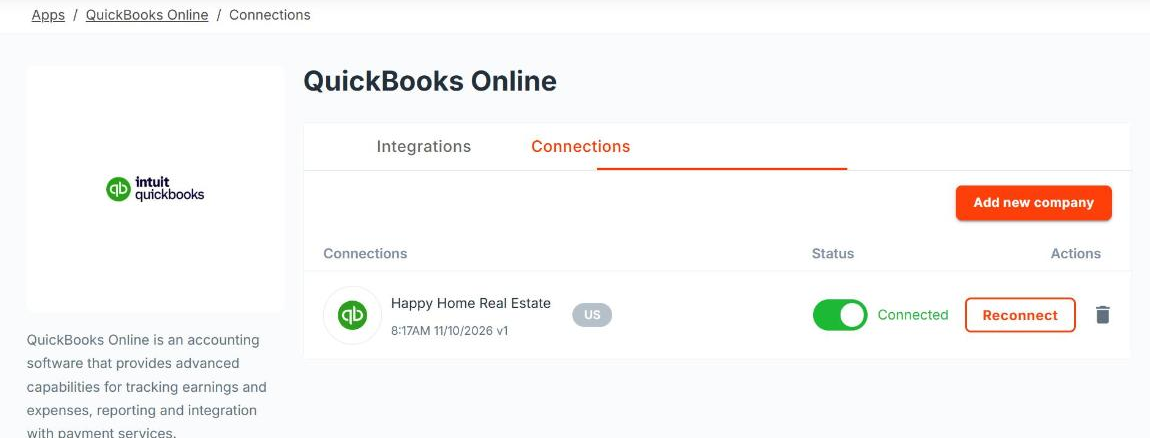
Reconnect a company
Reconnect when API Nation can no longer reach your QuickBooks company, for example after a password change or after the company was disconnected inside QuickBooks. Reconnecting refreshes the same company, so your workflows keep using it.
- Click Reconnect next to the company.
- In the window that opens, click Connect to QuickBooks.
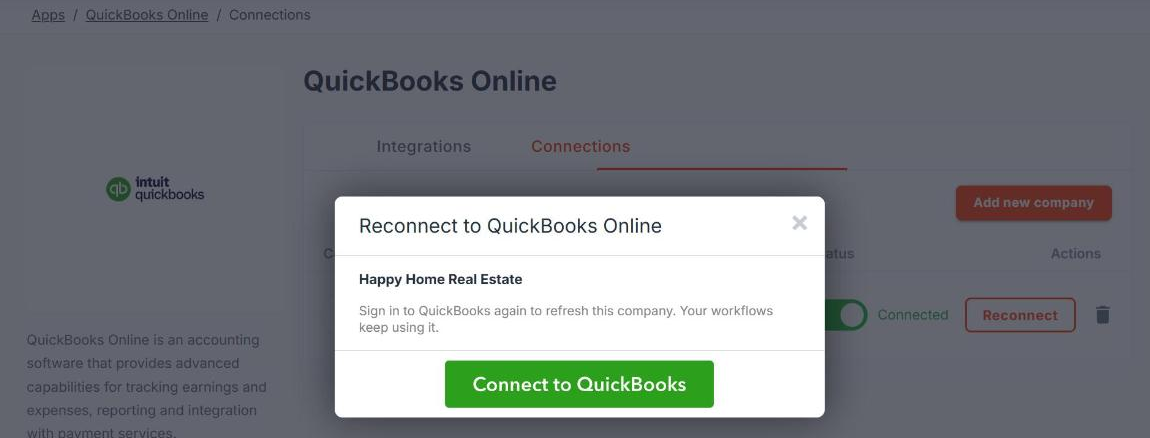
- Sign in to QuickBooks and choose the same company.
Add another company
- Click Add new company.
- In the window that opens, click Connect to QuickBooks.
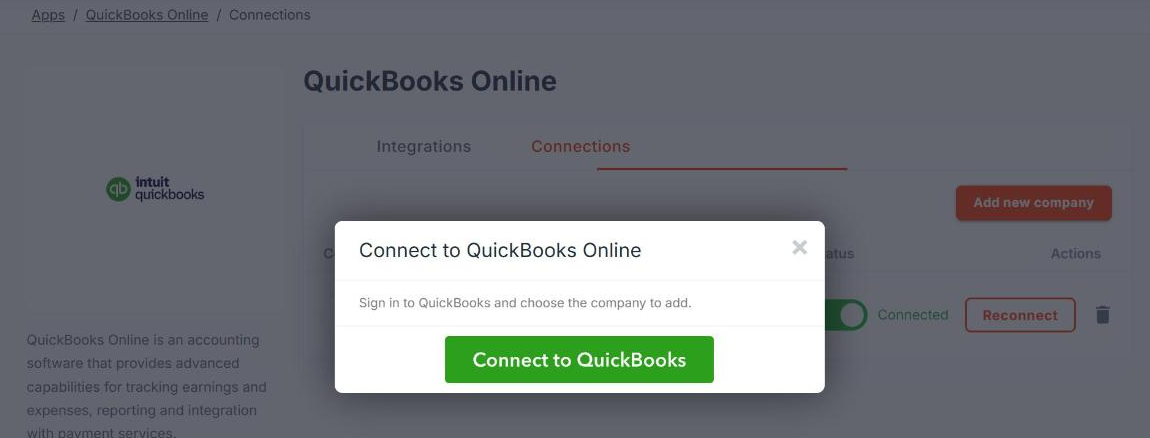
- Sign in to QuickBooks and choose the company to add.
Remove a company
- Click the delete icon next to the company.
- Click Disconnect to confirm.
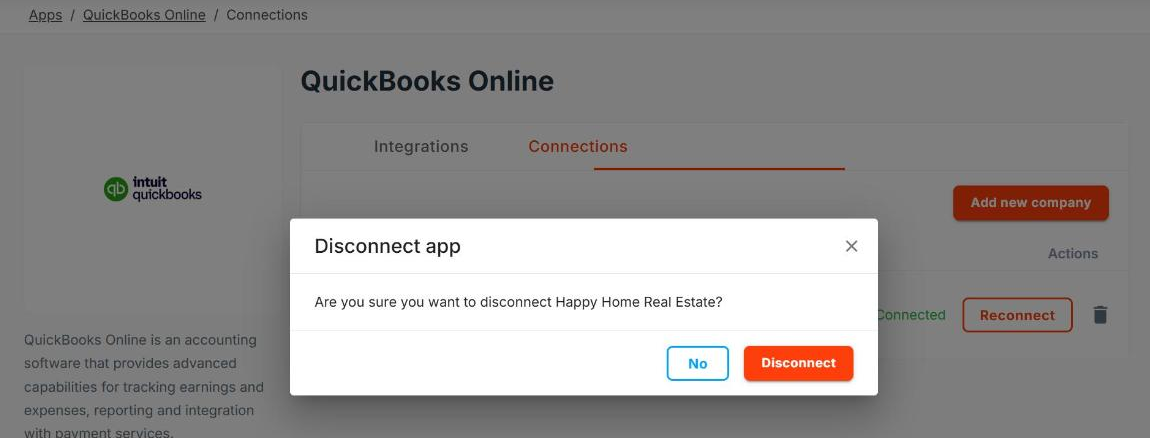
After you disconnect, you see the article QuickBooks Online Disconnected. Workflows that used the company are paused. To use the company again, add it with Add new company, select it in each workflow, and turn the workflow back on.
If you need help, email [email protected].
Screenshots © Intuit Inc. Used with permission.

